
Let users report a problem
When something does not work, the usual report is “it doesn’t work”. With problem reports switched on, your users can show you instead: they press Report a problem, redo what they did, say what went wrong in a sentence, and send it. You get the path they took, as steps, on the pages they took it, and you can replay it in your own app with the teaching cursor.
It is not session replay. Nothing is captured until somebody asks for it, nothing after they press Done, and what is captured is a list of controls, not a film.
Turning it on
Section titled “Turning it on”Problem reports are off for every app until an administrator turns them on. In the portal, open the app’s Settings, find Problem reports and press Let users report problems. Two choices come with it:
- What a report keeps. Structure only is the default and the
recommended choice: the words on the page are taken out of every step, so a
report says “Press a button” rather than “Press Order FK-10421”. Choose to
keep the labels only if you know your interface never shows your users’
own data. Structure only also takes ids out of addresses:
/orders/10421is sent as/orders/*. - Delete reports after so many days: 90 by default, anywhere from 7 to 365. After that a report is deleted outright, not hidden.
What your users see
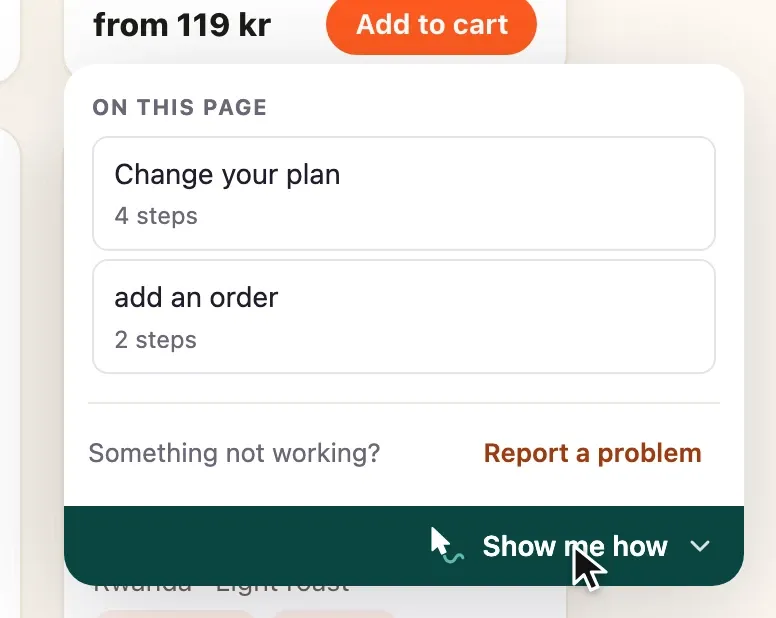
Section titled “What your users see”Once it is on, the launcher ends with Something not working? Report a problem. Pressing it opens an orange panel, unlike the teal guide, so nobody wonders which is which.
- Redo it. Each thing they press is added to the list, already masked. They can leave any step out.
- Say what went wrong. One sentence, in their own words.
- Send it. The list they approved is exactly what is sent. If it cannot be sent, they are told and can try again; closing the panel sends nothing.
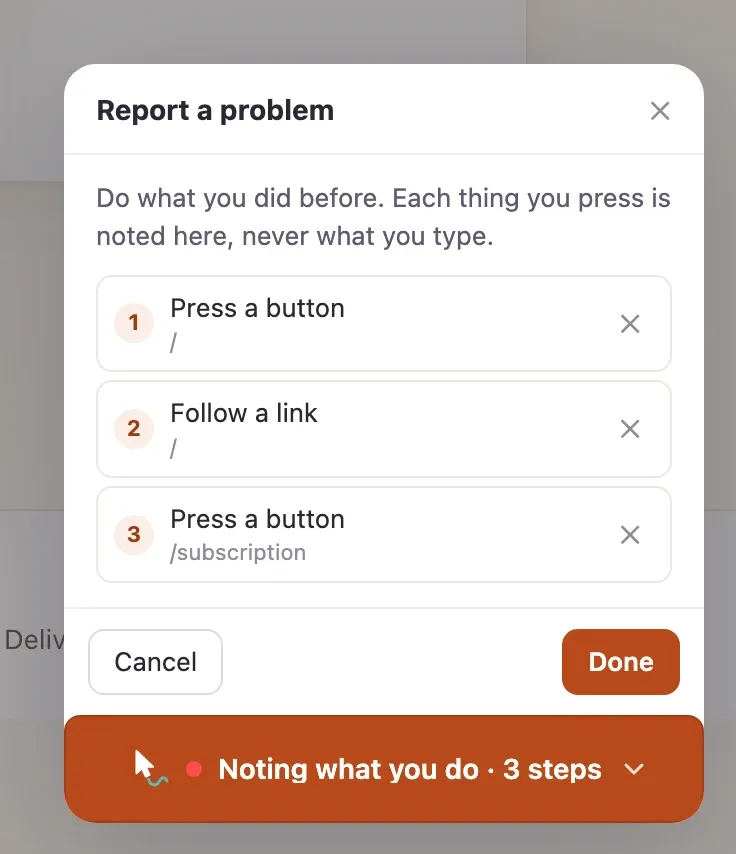
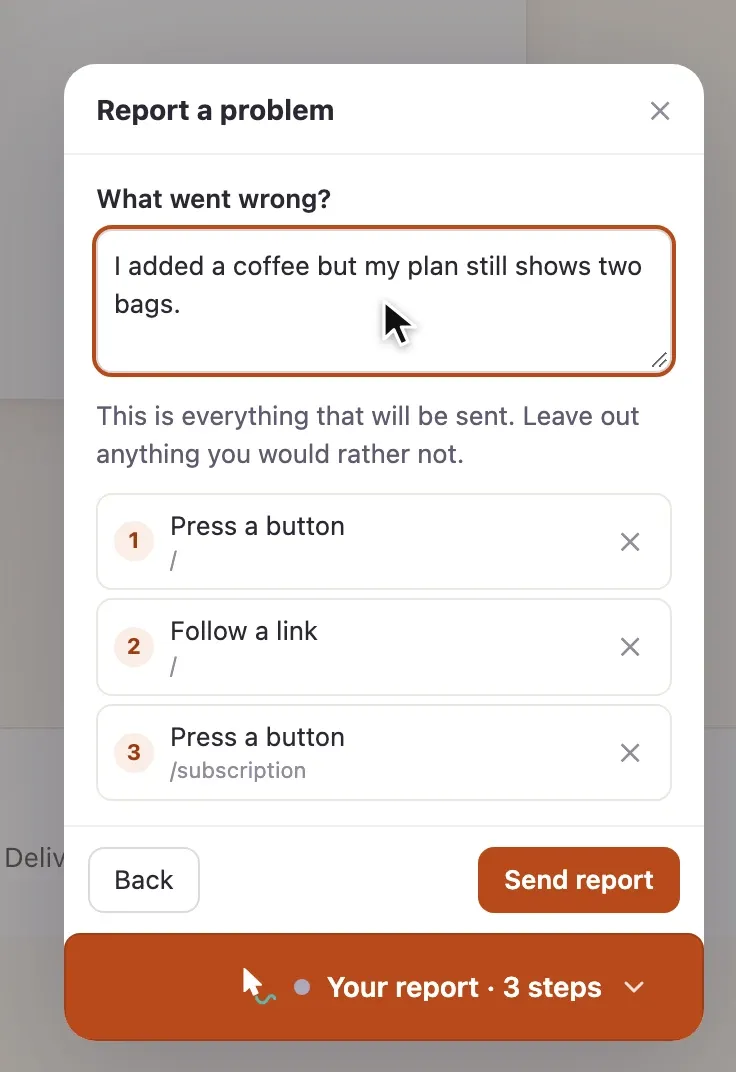
While a report is open the launcher steps aside, and a guide they were following waits, with its progress kept.
From your own help menu
Section titled “From your own help menu”If you keep the launcher off, offer reports from your own interface:
Wendmark.reportProblem()Wendmark.reportProblem({ userRef: currentUser.id })userRef is optional: an identifier you already have, so whoever reads the
report can reply to the person who sent it. Wendmark stores it exactly as
given and never looks inside it. Without it, a report can be read but not
answered, which is your call to make. It is also how you delete everything one
person has sent.
reportProblem() does nothing unless reports are switched on for the app.
What is never captured
Section titled “What is never captured”- Nothing anyone types. It uses the same recorder as authoring, which never
reads a field’s value, a keystroke or
contenteditablecontent. - No screenshots, no page content, no console, no network traffic.
- Nothing before they start, nothing after they stop.
- No identity, unless you pass a
userRefyourself.
The portal does not take the snippet’s word for any of this: it applies your app’s own masking again before it stores anything. The full reasoning, and the one gap masking cannot close (test ids built from record ids), is in the decision record and the trust model.
Reading reports
Section titled “Reading reports”Each app’s page in the portal has a Reports button with a count.
- The list shows each report’s first line, how many steps, the pages, when
it arrived and, if your app passed a
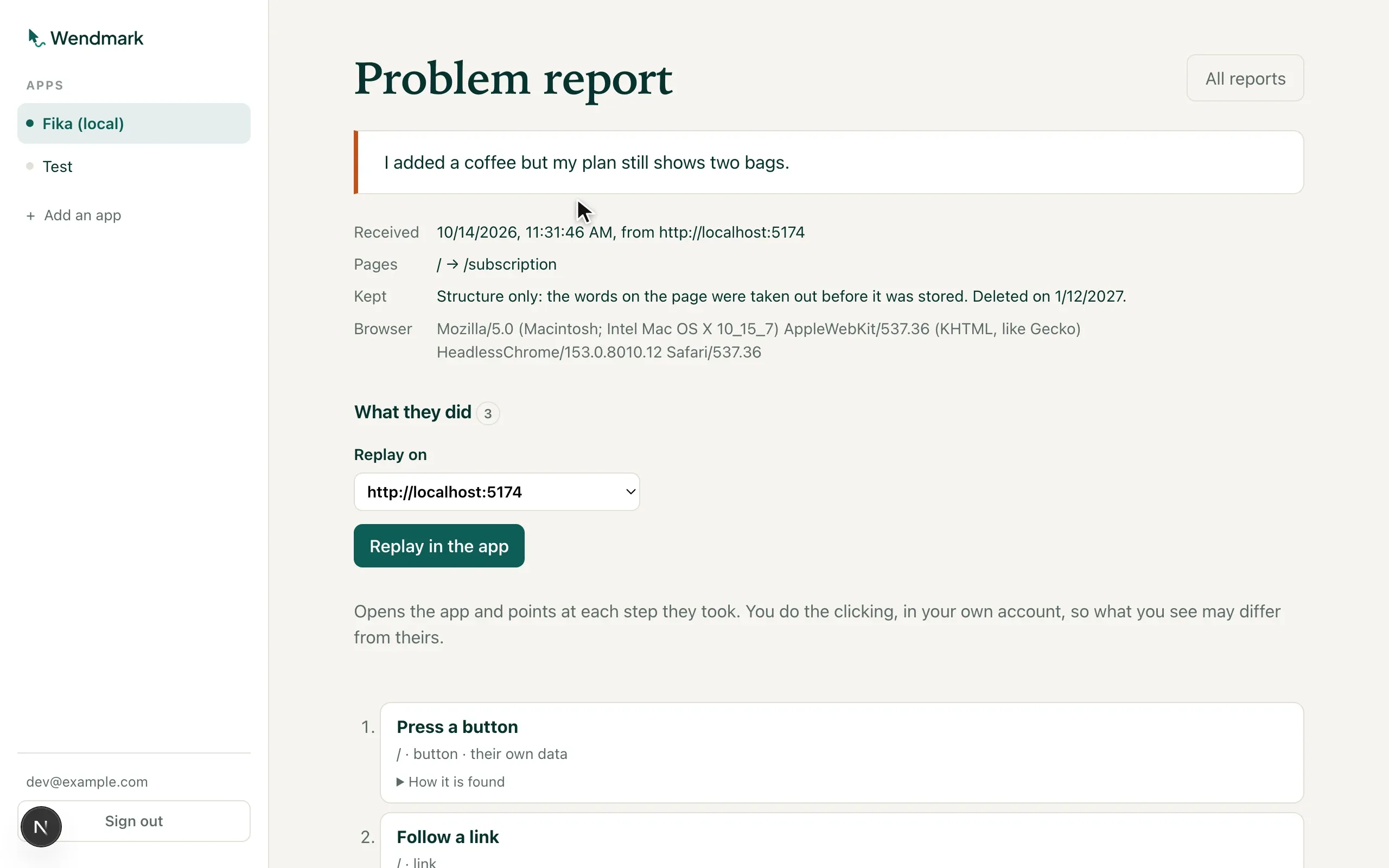
userRef, who sent it. Newest first. - A report’s page shows the person’s note in full, where it came from, the pages, how it was kept and the day it will be deleted, then every step as it was stored: under structure only, “Press a button” on which page, of what kind, whether it pointed at the user’s own data, and how the control is found again.
- Delete removes one report outright, after asking once.
- Everything from one person: from a report’s page, follow “everything
they sent” to see one
userRef’s reports, where an administrator can delete them all at once. That is the answer to “delete what you have about me”.
Administrators and editors can read and delete reports; only an administrator can erase everything from one person. Viewers do not see reports at all, since they hold your users’ own words.
A report past its retention date is never shown: expired reports are swept before every read, as well as when new ones arrive.
Replaying a report
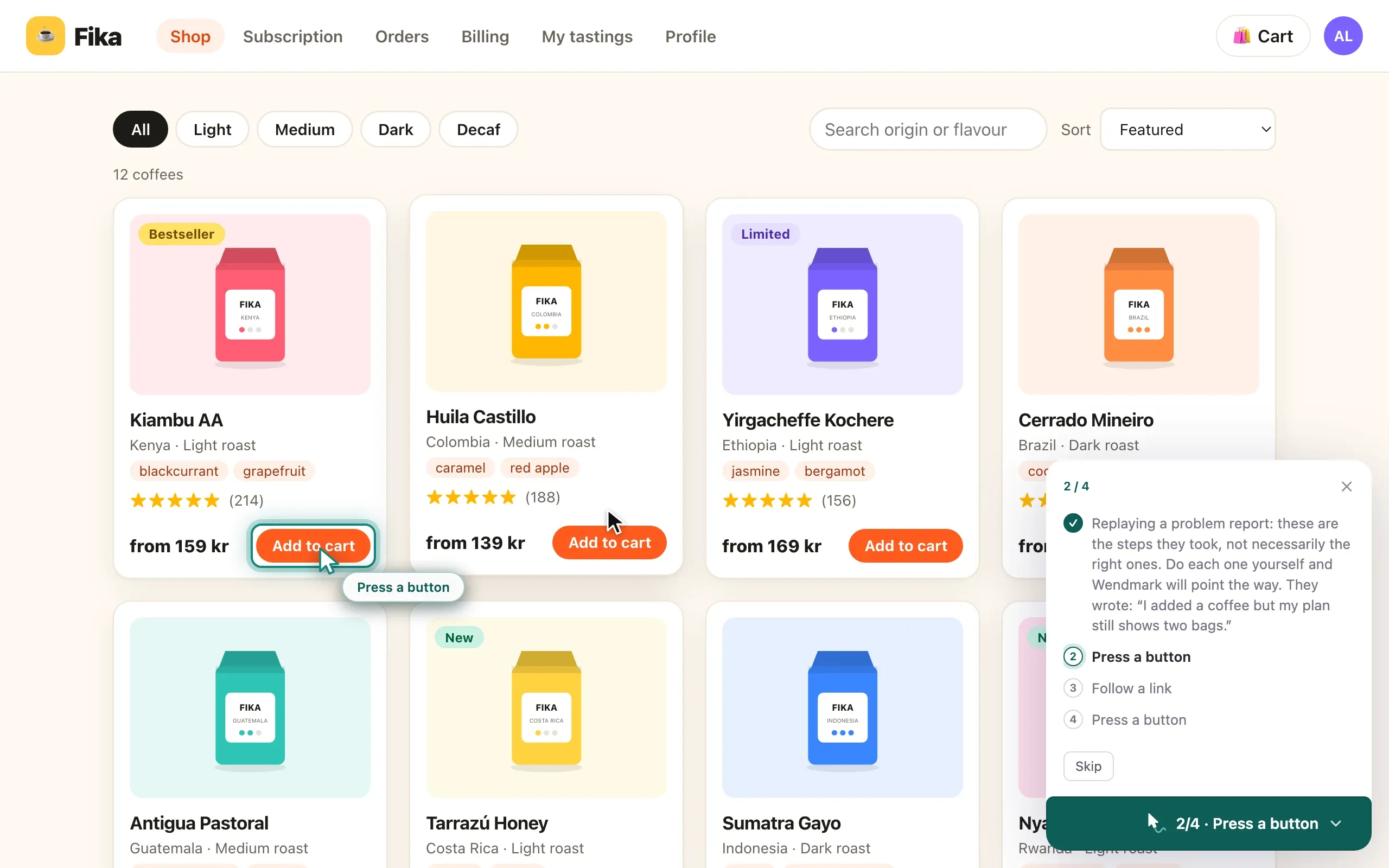
Section titled “Replaying a report”Reading “Press a button, then Follow a link” only goes so far. On a report’s page, Replay in the app opens your app and walks the teaching cursor along the path the person took, the same cursor your guides use.
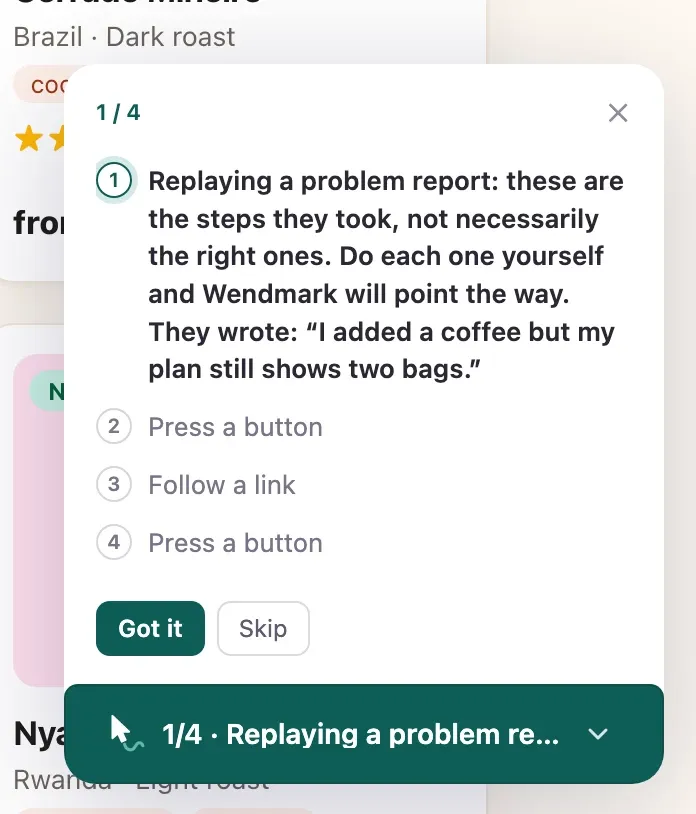
- It opens where they were: the address the report came from, on the
first page they were on. If that page’s address had an id masked out
(
/orders/*), it starts at your app’s front page instead. - You do the clicking, in your own account. Wendmark points at each step and moves on when you have done it, exactly as a guide does.
- Your data is not theirs. If a step points at something you do not have, such as their order, the replay says it cannot find it and Skip moves on. That difference is often the bug.
Opening a replay works like recording: your app asks the portal for permission and the portal grants it because you, signed in, pressed the button. What it grants is narrower: reading that one report, for fifteen minutes, from that address. It cannot read other reports or save anything. It needs the same permission as opening the report, so viewers cannot. The reasoning is in the decision record.